Security Awareness Engagement Toolkit

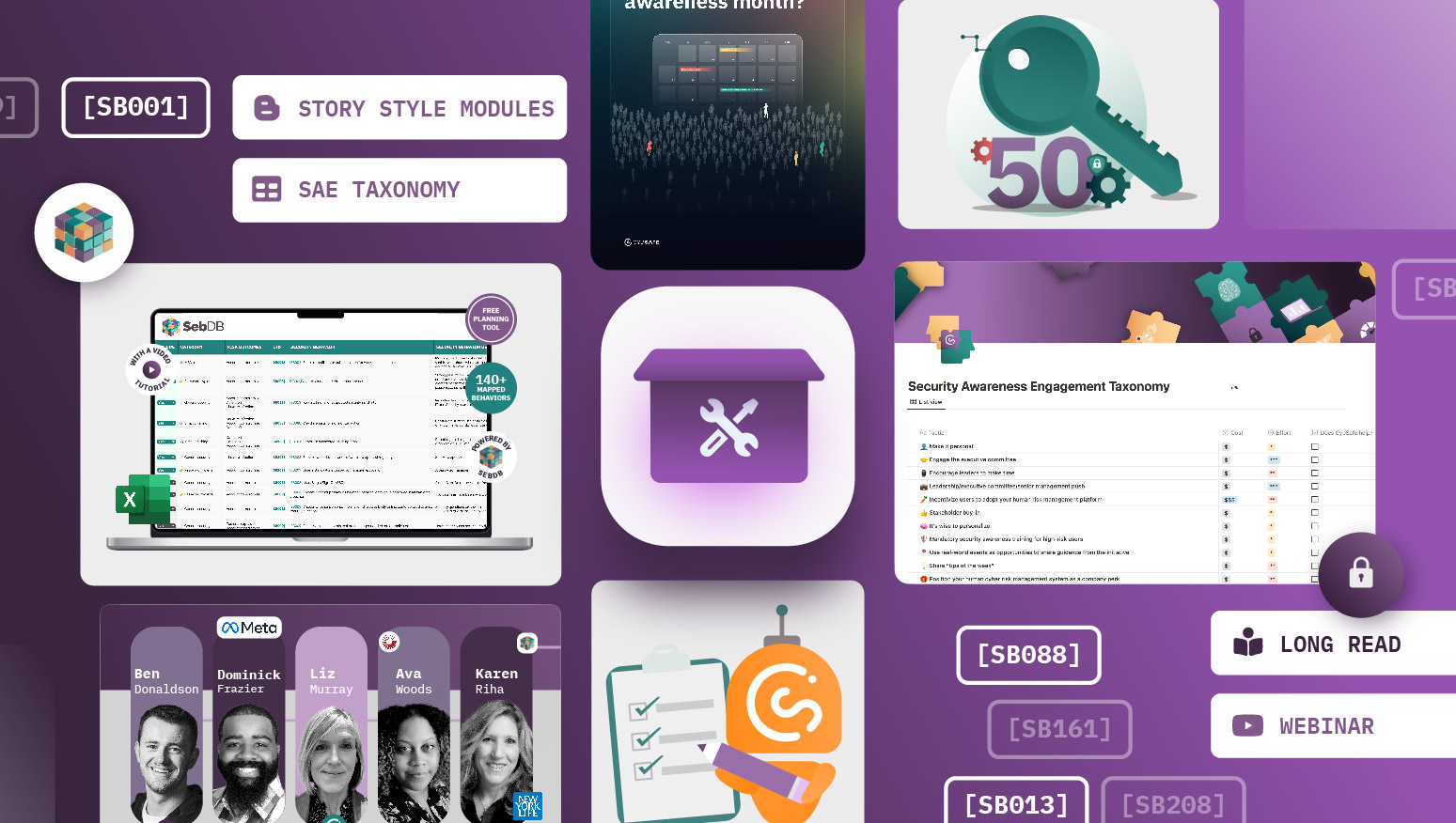
Our Security Awareness Engagement Toolkit – revamped for Cybersecurity Awareness Month 2025 (CAM2025) – has everything needed to create a security awareness program to improve people’s security behaviors.


Joe is many things. A father, husband, amateur flautist, and head of sales. He's also a target.
BEEP BEEP BEEP BEEP BEEP BEEP. SLAM.
The sound of Joe turning off his fifth alarm.
It’s 7 a.m. and a brand new day. Time to get up and get out. He throws on a shirt and tie, brushes his teeth, and wakes up the kids.
"Myles, Lily, time to wake up!"
"But bed is so comfy!"
"Up!"
Joe heads downstairs, puts on his ‘Morning tunes’ and packs their lunches. When Myles and Lily eventually grace the kitchen table, Joe snaps a cute pic of them eating breakfast.
Little does Joe know, he’s already a target. And not because of his music taste.
Joe posts the picture on social media: ‘my two little eggs <3’
"Dad, you’re so embarrassing!"
"And your profile isn't even private!" …
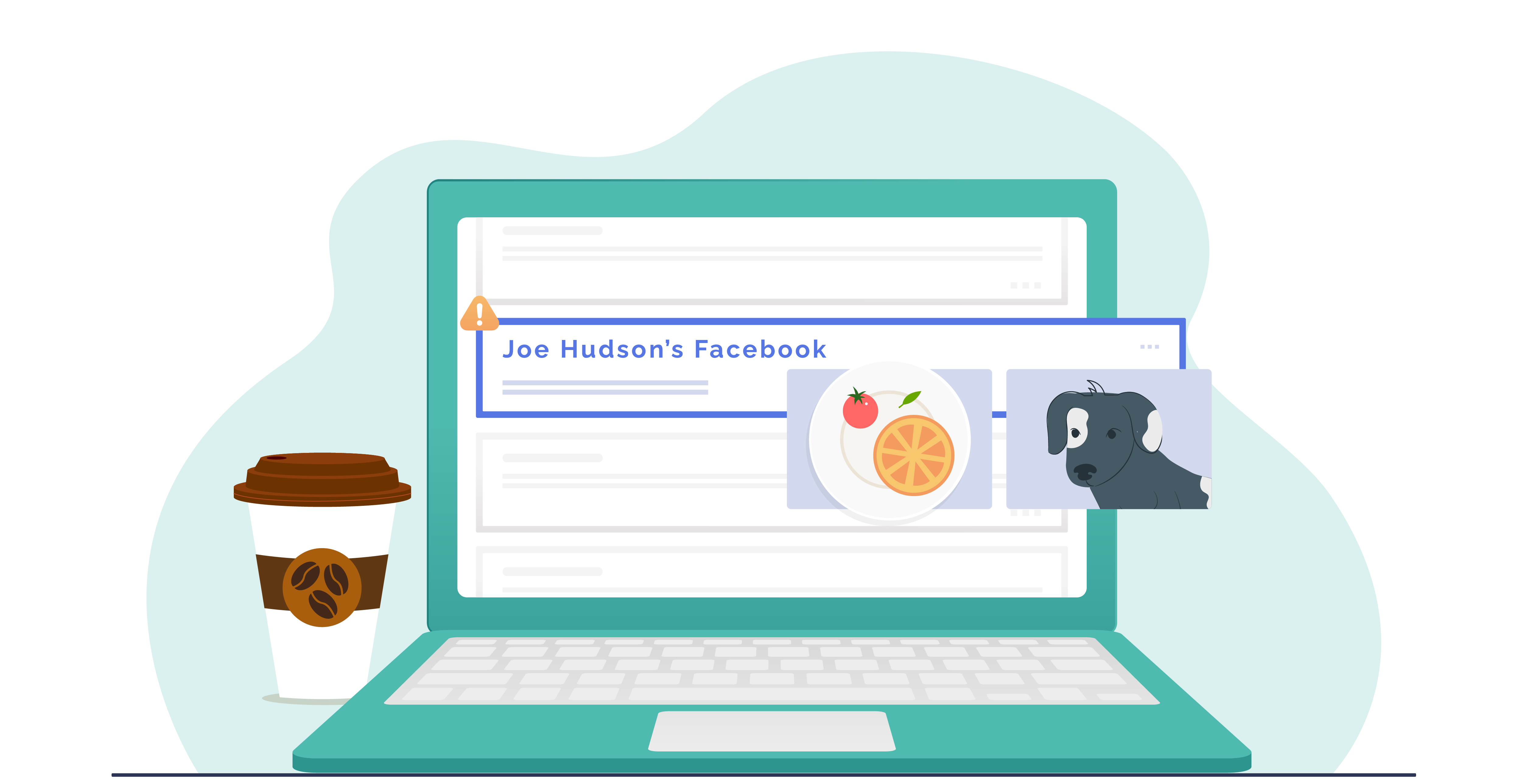
Joe’s social media profile catches the eye of a fraudster.
Everything about Joe is public. His music, birthday, friends, family, job title, company, email address, phone number and favorite wrestler. You name it, it’s there.
85% of identity thieves use social media to access victims' personal information.
As Joe coaxes Lily and Myles out of the house, the fraudster is hard at work. There is so much information about Joe available online, it’s a matter of moments before the fraudster has loaded everything into a password profiler.
Within minutes, the fraudster has access to Joe’s accounts. Netflix, Amazon, Facebook, Instagram, LinkedIn, TikTok, the lot.
Pro tip
Fraudsters view public social media profiles as one thing: $$$.
Find out what information about you is publicly available using Google’s Manage your reputation tool. It shows exactly what information is publicly available and gives you the power to remove any unwanted content or associated search results.
Fraudsters use personal information to access accounts, so it’s best to keep them private. Just log onto your social media accounts and change the privacy settings. After all, there’s nothing more off-putting to a fraudster than a private account.
Find out how to secure your social media here.
As Joe drops Lily and Myles at school, the fraudster is selling Joe’s Netflix account on the dark web.
This is really going to mess with his TV recommendations.
Case study: The Hollywood Job

Joe arrives at work, makes his way to his desk and turns on his laptop. He is confronted by something that strikes fear into his heart: update notifications.
System, antivirus and app updates! When will they end?
But Joe knows how to deal with these pesky notifications: ignore them till they go away.
He knows that it takes roughly 10 minutes for them to disappear. He sticks his head out into the office. "Coffee, anyone?"
Pro tip
Forgetting to install updates to your devices or applications is like leaving your front door unlocked. Updates allow security improvements to be applied. Without updates, your device is vulnerable to compromise and puts confidential data at risk.
You can set updates to automatically install in your device’s security settings. Head here for system-specific guides.
One watercooler chat and cappuccino later, Joe returns to his desk. No more notifications. It’s like magic. He settles down and opens his emails.
Joe doesn’t realize that he’s a dream come true. At least, he is for organized crime groups. He has access to data and information that can be sold for a profit. And what’s more, he skips security updates.
As Joe opens up his emails, he sees a message from the CEO.
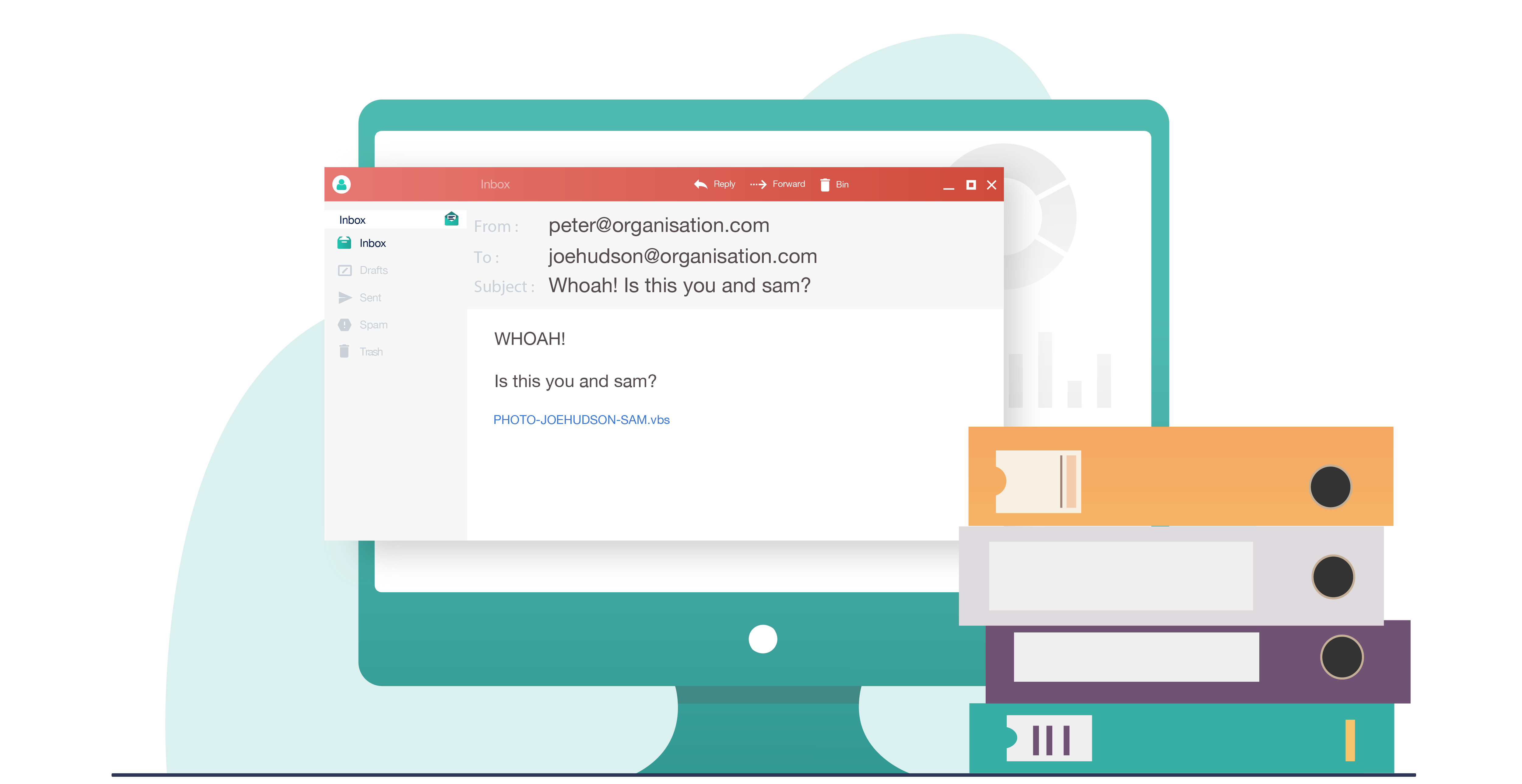
The message has an attachment. It appears to contain a picture of Joe and the Director of Marketing, Sam. Nerve-wracking stuff to receive from the CEO.
In a panic, Joe forwards the email to Sam and clicks on the attachment. There is no picture.
Joe, confused, wipes his brow and laughs it off. Little does he know, spyware has started taking over his laptop.
Case study: It makes you WannaCry
Pro tip
Spyware comes in many different forms, but all forms can be detected. If you suspect your device is infected with spyware, take the following steps:
Across the office, Sam receives the email and opens the attachment. A warning flashes onto his screen: ‘this attachment is unsafe.’
Sam’s laptop had been set to auto-update. Thankfully, the most recent update contained a defence against new internet nasties. It was installed while Sam was chatting to Joe by the watercooler.
Sam reported the email straight away. Crisis averted.
Pro tip
Verify! Verify! Verify!
Using known contact details to verify emails and messages is an easy way to avoid malicious attachments. When in doubt, verify! Especially before forwarding anything.
And be sure to check if any attached files end in ‘.exe’, ‘.vbs’ or ‘.scr’. These file types perform an action which could put your device at risk.

Nothing is nicer than a well-deserved lunch break. And Joe’s lunch break is positively delightful. He’s meeting an old co-worker for fajitas.
The Head of IT’s afternoon is also delightful. She prevented an attack by removing a load of spyware that somehow found its way into the system. Weird.
Pro tip
Report! Report! Report!
Reporting any suspicious messages, emails or attachments to your IT department can help prevent future attacks and identify sneaky malware.
Joe sits down and orders some fajitas. Robin, Joe’s former coworker, sits down beside him. After some witty repartee, Robin shifts the topic of conversation.
"I was wondering if you could help me get back into the office? I left a few personal items I need to grab."
"Of course! We can head over there after lunch."

Insiders love access. For malicious employees, access is an opportunity for exploitation. And who better to grant it than a trusting soul like Joe?
Pro tip
Insiders often try to intercept information or obtain documents requiring elevated access. Everyone has the power to challenge access.
You should feel authorized to question people when you are unsure of something. Someone in the office without a pass? Ask to see it. Someone requesting to view a confidential document? Verify their reason.
Back at work, Robin follows Joe into the office. Sam thinks it’s a bit odd, but doesn’t question it.
"Just going to grab my stuff." Robin whispers, heading into the backroom. Joe nods and gets back to work. Meanwhile, Sam does a quick LinkedIn search. Robin is now working for their competitor.
"Erm… Joe?"
"Yes, Sam?"
"Did you know Robin works for our competitor?"
Joe’s eyes widen as he realises that Robin could be an insider.
Joe rushes into the back office. There stands Robin. He’s taking photos of important documents.
And he would have gotten away with it too…
Case study: Employee of the month

After a long day of being a target, Joe just wants to watch TV with his kids. But as he logs in to Netflix, something seems off.
"Which one of you has been watching Dance Moms?"
Myles and Lily shrug their shoulders, "not us!"
"And which one of you has made a new profile?"
"What new profile?"
Joe clicks back to the profile selection page.

"There! Which one of you is NetflixHacker49?"
Myles and Lily give another shrug.
Joe realises what has happened. His account has been hacked. And if this account is compromised, others might be too. Joe gives Sam a ring.
"I think my Netflix account has been hacked!"
"Okay, calm down."
Sam sends Joe a message that contains a single line: haveibeenpwned.com
"Go on that website and type in your email," Sam explains, "it’ll tell you if there’s been a breach."
With a flurry, Joe types in his details and hits ‘Enter’.
Oh no - pwned!
Joe’s accounts have been breached. "Not to worry" Sam calmly states. "Go into your accounts and change your passwords to separate passphrases. Then, enable multi-factor authentication on accounts that allow it"
Joe hands the remote control to Myles and jumps on his computer.
As he goes through his accounts, Lily’s voice drifts in from the living room.
"Daaaad!"
"Yes, Lily?"
"Myles has clicked on something he shouldn’t have!"
Here we go again.

The true story of a prank so good, even the White House fell for it.
One slow day, whilst sitting in his office, James Linton noticed something. Emails don’t show the sending email address by default. He realized he could put any name there he wanted.
So he did, for five months.
He started by pranking his colleagues. He sent them emails that looked like they were from their CEO. He loved the excitement and wanted more.
James’s first real victim was the CEO of a large British bank. James sent him an email purportedly from the bank’s chairman. Suspecting nothing, the CEO engaged in an exchange praising the chairman.
James leaked the email exchange, embarrassing the CEO and prompting the bank to reconfigure their email systems. SINON_REBORN – James' prankster alter ego – had arrived!
The pranking spree continued:
Sending fake emails was exhilarating. James compared the excitement of it to the high of gambling – “You fire out three emails, and one of them comes up. When it does, you realize you have one on the line.”
James’ emails worked. Over and over again.
They worked because they won his victims' trust.
That’s exactly what targeted fake emails do.
Fake emails look like they're from legitimate or known sources, like a person or company you know.
These days, fake emails are difficult to spot.
The idea that most fake emails come from “long-lost relatives” is a myth. Today’s fake emails are more convincing. For the most part, they’re free from spelling and grammatical errors.
Fake emails can be either generic or targeted.
Generic fake emails are low in complexity but high in volume. Criminals send out millions of them. They usually look like they’re from a well-known company, like Apple or Amazon.
Targeted fake emails are harder to recognize and are increasingly common. They’re unique to the recipient and usually reference information found on platforms like LinkedIn.
Pro tip
You may have heard some people refer to fake emails as “phishing”. They’re exactly the same thing. Targeted fake emails are sometimes called “spear-phishing”.
Creating legitimate-looking fake emails isn’t as hard as you might think.
James first decided on his target, then on his character based on his target’s professional and personal connections.
The next step was to find a hook. The hook was usually an interest both James’s target and character shared.
James then created a fake email address using his character’s name.
Finally, James added extra credibility to his fake emails. For example, he might hand-type a second “email” below his message. This additional text, James believed, made his emails seem as though they had been forwarded.
James also favored adding “Sent from my iPhone” to the end of messages. This made it seem like his messages were sent by an ordinary person, not “somebody huddled over a laptop in their hoodie.”
Pro tip
How to create legitimate-looking fake emails
A guide by James Linton:
1. Pick your target.
2. Pick your character.
3. Create a hook.
4. Create a fake email address.
5. Add extra credibility.
After tricking the White House, James’s search for worthy prey continued. That was when he landed on the Technical Director of the UK’s National Cyber Security Centre (NCSC) – Dr Ian Levy.
Posing as a colleague – the Director of Operations – James “accidentally forwarded” an email from another colleague – the Director of Communications – to Ian, including a link to an article.

Image description
After inspecting the link on his phone (using a good old "touch-and-hold"), Ian suspected the emails were fake.

You can use Ian Levy’s 3-step checklist:
Pro tip
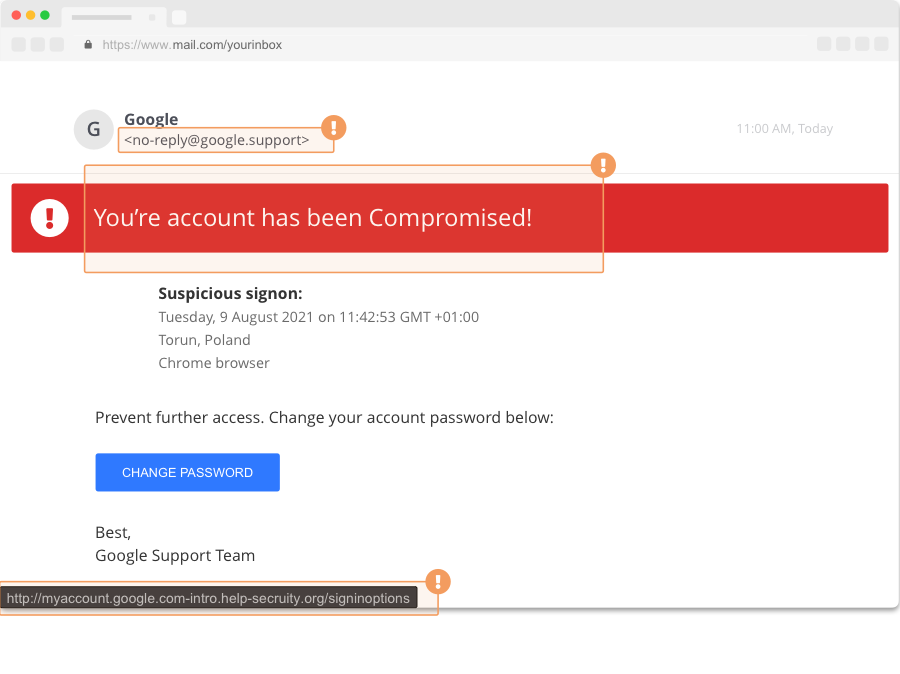
How to spot fake emails
1. Check sender’s address.
2. Check content.
3. Check links or attachments.
Email inboxes show sender names, but they don’t always show addresses.
You can click on the sender’s name to reveal their actual email address. Pay attention to the information that comes after @.
Right after Ian had noticed the link protection of mail.com – instead of ncsc.gov.uk – he examined the sender’s address:
paul.chichester.ncsc.gov@mail.com
It didn’t look right. It was supposed to end with @gov.uk. He was intrigued, so he played along, humoring his adversary. Eventually, Ian Levy convinced James Linton to reveal his identity.
Pro tip
Do you recognize the sender or the sender’s email address?
Fake emails use emotional manipulation to trick people. Notice the different types of emotions evoked:
Pro tip
Is the email unexpected? Does it convey an undue sense of urgency? Does it ask you to break policy?
Links can be displayed in their raw format (www.google.com) or as a hyperlink (this). They can also be disguised or shortened, like this https://bit.ly/3yJanNJ.
To see the true destination of a link, hover your mouse over it.
Or, if on your phone, do what Ian did. Touch & hold the link to reveal its true destination. This is how Ian noticed the link for mail.com, instead of ncsc.gov.uk.
File extensions — the last 3 or 4 letters after the dot "." at the end of the file — tell you what a file does. So make sure you inspect them before opening attachments.
Pro tip
Does the email include a link or attachment you don’t recognize?
Files ending .exe, .vbs and .scr are more likely to be dangerous. If you see a file that contains any of these extensions, especially if what you think you are opening is meant to be a read only file, such as a document, photo or video, be cautious.
Enable “Show file extensions” on your computer as it allows you to check file types before opening them.
Make sure the file you think you’re opening is what it claims to be:
Once you've spotted that the email you're reading is likely a phishing attempt, locate the ellipses (three dots) next to the reply button.
Click those three dots to bring up more options. Here you'll find the opportunity to 'Report as Phishing

Below are four emails - see if you can spot the fake ones. 🔍
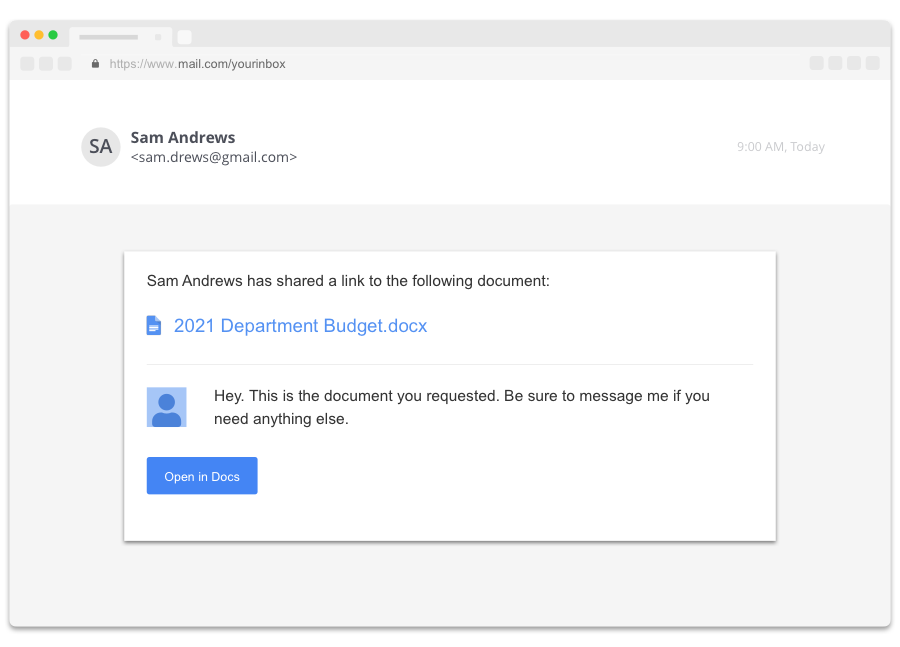
Image description
Real or fake?
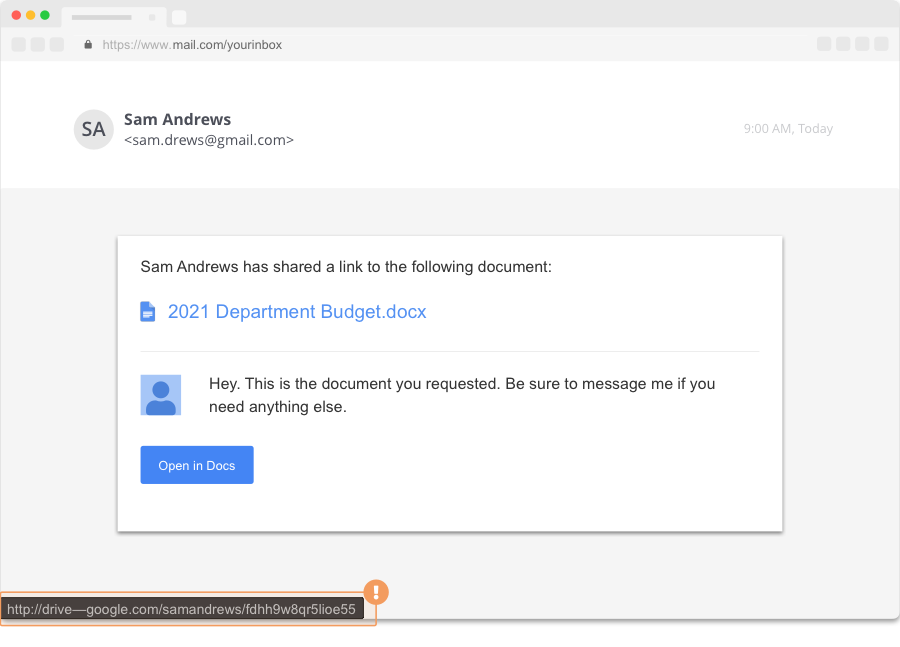

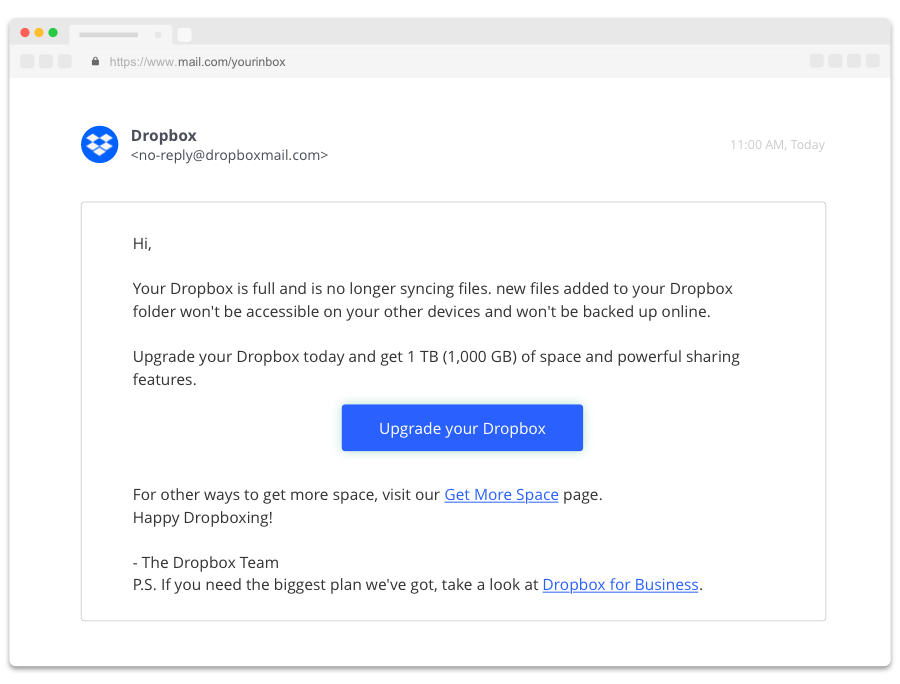
Image description
Real or fake?
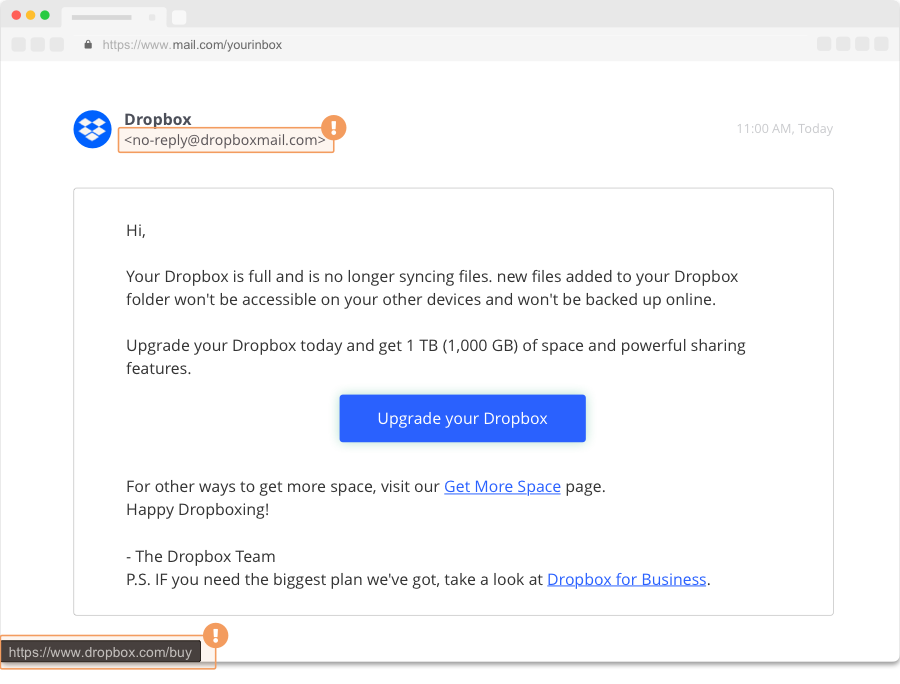

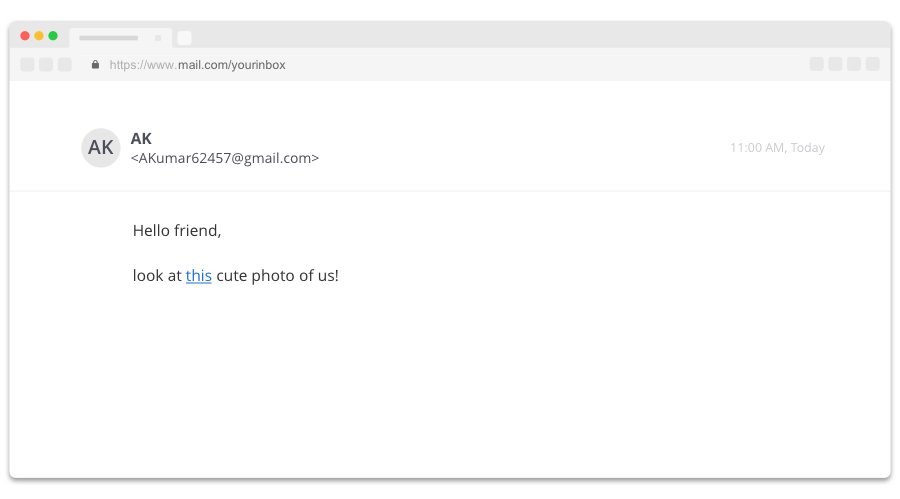
Image description
Real or fake?
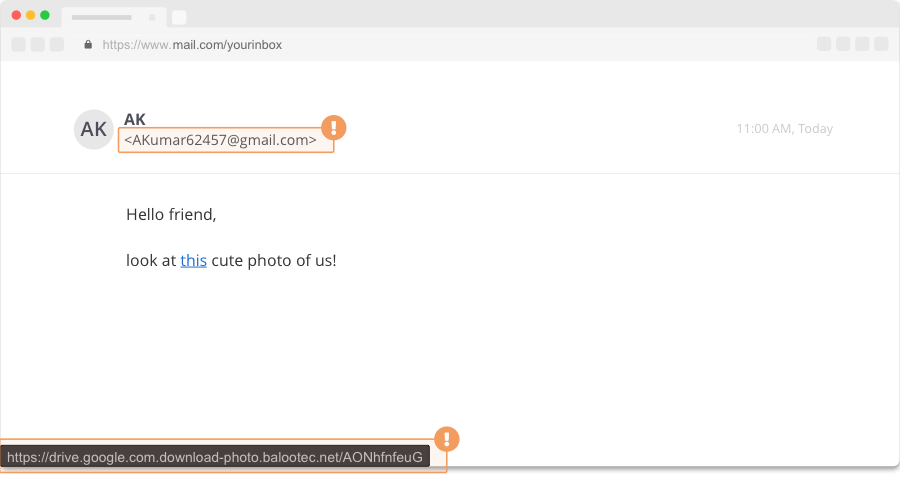
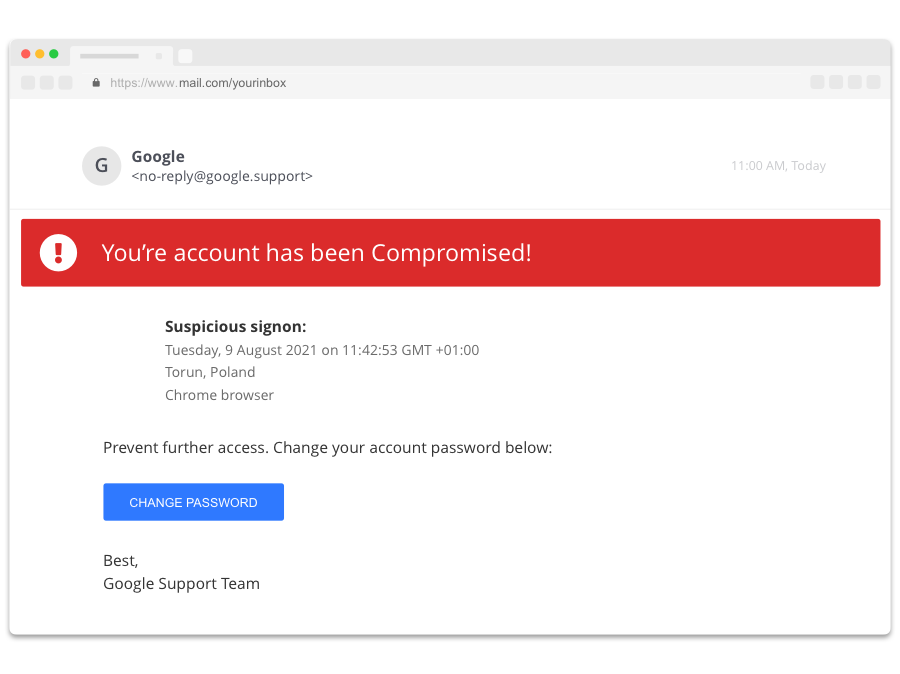
Image description
Real or fake?
After Ian Levy coaxed James Linton out of hiding, the pair teamed up. Their aim was to help people spot future fake emails.
After completing this module, you’ll have everything you need to do just that.
A week in the life of a ransomware attack, and how Mo could have prevented it.
Mo liked his job. He liked his colleagues, his office, and now Spring had finally sprung, he even liked the commute.
Little did he know, it was more than the weather that would make this a week to remember.
Mo was in a good mood. The Sun shone on his morning walk and he could feel the vitamin D coursing through his veins.
As he sat at his desk, he glanced at his phone and saw an urgent email:
Account anomaly detected. Please verify your login to avoid suspension.
The logo looked right. The sender was “it-support@digiworks.com.” He noticed how urgent the email sounded, but assumed this was just because it was important..
Without thinking, Mo tapped the link and logged in. He noticed the website’s address was “dig1works.com” but brushed the odd ‘1’ off as a typo.
After that, his account seemed to work just fine.

How many signs of deception did you spot?
Pro tip
To check a URL’s destination, hover over the link with your mouse. If you are on mobile, long-press the link. If you’re in doubt, go direct - open your browser and type the address by hand.
If the message is unexpected or suspicious, verify the message with the sender using alternative contact details. If you are still suspicious, report the message to your IT department or Security team.

Tuesday morning, Mo received confused texts from his teammates.
“Hey, did you send me a spreadsheet called ‘Q4Budget_REAL.xlsm’?”
He hadn’t. Meanwhile, his inbox filled with ‘delivery failed’ notices for emails he never sent.
Other teams were distracted: one manager’s computer rebooted three times in an hour. Another’s desktop was flooded with pop-up ads. Still, Mo said nothing. It was too little too late, and the issue, he thought, was out of his hands.
How many signs of account compromise did you catch?
Bonus content: Attachments and macros
Pro tip
If people mention strange emails from you, assume your accounts has been compromised. Report it to your IT department or Security team. In the meantime, switch out old passwords with new, separate passphrases and enable passkeys for all accounts that allow it.
Once you have done that, enable the ‘Show file extensions’ setting on your Windows or Apple device, and ‘Protected View’ in Microsoft Office. These will allow you to spot malicious attachments more easily.
If Mo was anxious on Tuesday, Wednesday was going to hit him like a tonne of bricks.
His laptop froze repeatedly. Colleagues complained that shared drives were full of corrupted files, surprise software updates derailed important meetings, and fans spun loud enough to drown conversations. The team chat was full of messages asking, “is anyone else having weird tech issues?”
Filled with dread, Mo said nothing.

How many glitches did you glimpse?
Pro tip
Unusual computer performance is a reason to act. Silent infections can cost organisations weeks of lost time, plus reputational and financial damage.
If you notice performance issues or unexplained changes to your system, disconnect your device from the internet and your internal network. Report the strange behaviour to your IT department immediately. Trying to fix these issues alone could inadvertently erase clues or spread the infection.
Bonus content: Personal devices
On Thursday morning, Mo’s heart sank. As he logged in, a red pop-up took over his screen:
“Your files have been encrypted. Send $3,000 in Bitcoin to unlock them.”
Across the office, on the desktops of managers, senior leaders and teammates alike, similar ransom notes appeared. Clients called in a panic, critical files were missing, and the company’s main systems were offline.
Rumors raced through the office. Kinara, Mo’s manager, gathered the team.
“Has anyone clicked a suspicious link or downloaded something they shouldn’t have?”
Mo’s voice caught in his throat, but he still couldn’t bring himself to confess.

You see a ransomware note hit your screen. What do you do?
Pro tip
Speed matters. The faster you report, the less damage ransomware can cause.
For personal devices, use NoMoreRansom.org before considering desperate measures. It helps people recover files without paying a ransom.
Bonus content: Back it up!
By Friday, DigiWorks couldn’t function. News agencies picked up the story, clients threatened to switch providers, and key deliverables were lost. HR circulated a memo about potential layoffs.
Finally, overwhelmed and heartsick, Mo approached Kinara. “I have to tell you something. I think this all started when I clicked a strange email on Monday.”
Kinara took a deep breath. “Mo, thank you for telling me. But if we’d known four days ago, we could have stopped this before it got too far.”
Case study: ILOVEYOU
Security incidents aren’t always the result of a fake email. Cybercriminals have plenty of tricks up their sleeves. Here are some other ways devices can become infected and spread infections.
External devices
If a portable device (such as a mobile phone, external hard drive, or USB) becomes infected, plugging it into new devices can spread the malware. That’s why cybercriminals will often leave malware-infected devices near office spaces. These devices may have labels like ‘Holiday photos’ or ‘Top Secret’ to pique your interest.
If you do come across a device in the wild, do not plug it in. Take it to a security professional to check if the device is safe.
If you’re using a public charging point, use a charging-only adapter or disable the function to ‘automatically transfer data’ on your device.
Apps
Malware can be hidden in legitimate-looking apps. The apps behave like the real thing while stealing your data.
To avoid these pieces of shadowy software, only download apps from reputable stores like the Apple App store or Google Play. And check reviews before installing, just in case.
Browser-in-the-browser attacks
Cybercriminals can mimic real website windows. Once clicked, these windows can download malware onto your device. This goes for pop-ups, too.
So, if an unexpected pop-up appears, avoid clicking on it. Use a shortcut to close the window instead. On Windows, the shortcut is Ctrl + W. On Mac, it’s Command + W.


When it came to cybersecurity, Alex knew his stuff. Unfortunately, so did Ryan.
Alex shut their laptop and reached for their chipped coffee mug. Being an IT support specialist for a global tech company had its headaches, but today had been quiet.
Alex took a moment to scroll LinkedIn. A few likes on yesterday’s hiking photo and a new connection request: Ryan Wilkes, Product Manager at Allied Orion. The profile looked normal enough. Mutual connections, a well-written summary, and a recent comment congratulating Alex for their new cyber certification. Alex smiled and accepted.
Little did Alex know, Ryan Wilkes did not exist.
Across the city, in a cramped apartment aglow with monitors, Ryan (real name unknown) trawled Alex’s digital life. Their LinkedIn boasted a new project launch at work (“Can’t wait to support the Phoenix Launch next month!”), while an Instagram post showed Alex atop Pine Ridge, grinning and sweaty. A tweet joked about password resets and too much coffee.
Every post, check-in, and selfie gave Ryan a piece of the Alex puzzle. Loves a picnic, soft spot for hiking, works in IT, smart but friendly, possibly naive.
Blending in with LinkedIn masses, “Ryan Wilkes” assembled the perfect attack.
Personal information available online is known as a ‘digital footprint’. This includes any information on social media accounts, search engines, and networking sites. This public data can be used to make fake emails more convincing.
Keep your digital footprint to a minimum by reviewing privacy settings across your social media accounts and only connecting with people you know.
Before posting, consider how a criminal could use the post against you.
Pro tip
Use Google’s ‘Results about you’ tool to see what personal information is publicly available online. And if you want to make your social media accounts private, click here to find out how.

Monday morning, Alex logs into Slack. An @everyone alert blinks for a split second, then disappears. Odd.
Minutes later, an email lands:
From: people-ops@companycareers.com
Subject: Pre-Launch Security Review
Hi Alex,
Given next week’s launch, we’ve scheduled a quick briefing at 11:45 AM to make sure we’re all aligned.
Please use the link below and confirm your attendance ASAP. Do not share this with anyone.
company-portal-login.com/briefing-room
Alex frowns and hovers over the link. Something’s off. Their company uses a .tech domain, not .com. And ‘people-ops’? That’s not the right sender naming convention.
Then, a message from Sam in HR.
Hey Alex! Saw PeopleOps sent you a briefing invite. Let me know when you’re set up. Big week for us!
In the old days, fake emails came with broken grammar and crude formatting. Now, attackers mimic internal tools, create a faux sense of urgency, and sound like helpful colleagues.
Scams span email, phone, and collaboration tools we use daily. Alex knows this, and his mind races.
The date and urgency make sense - product launches are always busy. But HR never messages this way, and the link is so generic it’s suspicious.
Weren’t there recent alerts about Slack webhook abuse? Where attackers inject messages into company channels?
Pro tip
Criminals don’t just use emails to trick you. They can use webhooks to orchestrate attacks on Microsoft Teams, Slack, and even WhatsApp.
Webhooks are features that let third-party services send messages using a unique (and secret) URL. If cybercriminals get a hold of the URL, they can use it to send messages.
Regardless of where the attack is, it will either try to elicit emotions or play off suspicious activity.
Is the message
If it is, report the message to your IT department or Security team.
Alex ignores the links and notifies the Security team. Within minutes, IT confirms multiple employees received similar attempts through email and Slack.
Fake messages are designed to make you click. To do this, they will create an undue sense of urgency, pique your interest, or cause you to panic. If the message causes any emotional reaction, it could be fake.
They may also contain spelling errors, poor grammar, or low-resolution images, but you can no longer rely on these to spot a scam.
Pro tip
If you receive an unexpected email, verify its authenticity by contacting the sender using an alternative contact method.
If the message asks you to click a link, hover over it with your mouse to see its true destination.
If you suspect the message is fake, report it to your IT department or Security team.
Thursday at HQ.
The office buzzed with the melodic clack of keyboards and the scent of roasted coffee. Alex, distracted by meeting reminders popping up on their phone, was approached by the reception desk. “Hey, Alex! Someone from Security says you’re on their list for a ‘prelaunch device scan.’ They’re waiting over there.”
Chris Jansen (at least, that’s what his badge said) strode over with the confidence of a long-standing employee. “Nice to meet you, Alex. I’m Chris. Just have to run a quick device scan before the Phoenix launch. IT’s orders. Sorry for the rush, but we’re trying to get through everyone today.”
He held out a neat business card alongside a plain USB, its label read ‘SECURITY UPDATE – OFFICIAL.’
Alex hesitated, fingers drumming on their laptop. The correct security procedures swirled in the back of their mind. Normally, they’d ask for Chris’s security credentials, but everything felt so official, and everyone seemed so busy. Plus, Chris knew the name of both Alex and the working product release name.
“Okay,” Alex folded, opening the laptop and making room for Chris to insert the USB.
“Won’t take a minute,” Chris assured, plugging it in. A progress bar flickered, then the message: ‘Update Complete’.
Smiling, Chris thanked Alex, gathered his things, and merged into the current of people heading down the hall.
For the rest of the day, a strange anxiety hummed away at the back of Alex’s mind. He could swear Chris looked just like Ryan Wilkes, a recent LinkedIn connection. But everything seemed fine, and the rush of meetings distracted from their doubts.
Alex’s anxiety was well-founded. There were plenty of opportunities to follow the correct security procedure. Unfortunately, pre-launch stress and the sense of urgency created by “Chris” overrode Alex’s judgment. This is known as ‘cognitive overload’.
Cognitive overload occurs when stress levels reach breaking point.
Alex could have avoided this by listening to what their body was telling them. Taking a minute to notice if your jaw is clenched, shoulders are hunched, or breath is shallow, is good practice.
If you feel you are carrying stress, slow down and re-focus. Do this by taking a short break. Even if that means popping to the toilet and splashing your face with water.
Pro tip
Security procedures are there for a reason. Take a minute to familiarise yourself with your organisation’s security procedures.
A good rule of thumb is to ask for the security credentials of people you do not recognise. This goes doubly for those requesting access to work devices or confidential data.
And, if someone does not have security credentials, direct them immediately to your Security team.
Two days later, IT had been inundated with tickets. Laptops froze, files disappeared, pop-ups flooded screens. Privileged credentials had been quietly stolen, giving Ryan access to sensitive plans and systems weeks before the Phoenix launch.
Security traced the breach: a fake facilities vendor, a well-crafted badge, perfectly-timed social engineering, and a USB drop. By the time investigators found the malware, Ryan was long gone, and critical data was spreading across dark web forums.
Alex’s mistake became an uncomfortable but vital lesson for everyone:
Pro tip
Not all social engineering attacks take place face-to-face.
Cybercriminals often use a technique called ‘baiting’. Baiting involves planting something loaded with malware, like a QR code or USB stick, somewhere discoverable. The aim is to invoke your curiosity, causing you to scan or insert the object into a device.
They may also leverage your comfort by eavesdropping on conversations or peering at your screen from over your shoulder.
If you want to stay safe in the wild,

I hack email accounts because I can. And because people make it easy for me.
I was sipping my latte when I overheard her.
“It was a bargain! Only $700 at xyz-style.com!! Just look how cute it is!!!”
The dress is alright… Judith Harris. That's her full name. A glance at her employee ID was all I needed.
Judith is clearly well-off. Who else describes a $700 dress as “a bargain”?
So what's next?
I start looking online to see what other personal information I can find.
Her Facebook and LinkedIn accounts are both public. In a few minutes, I know a lot about her: date of birth; home and work email address; family members; recent vacations; hobbies; and the dog’s name, obviously.
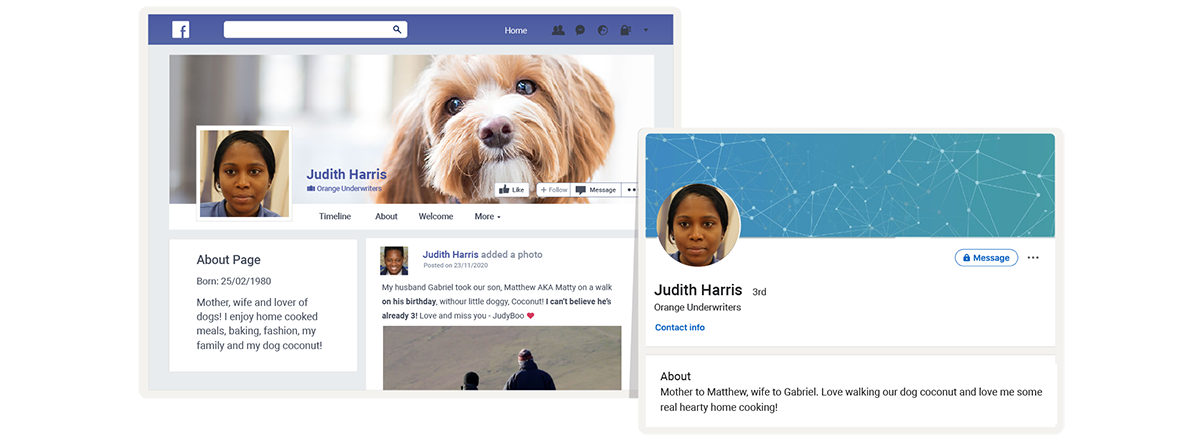
I bet I can use the information to break into her email account. From there I can access other accounts and services linked to it, like PayPal, Amazon, and her credit cards.
Bonus content: Password cracking
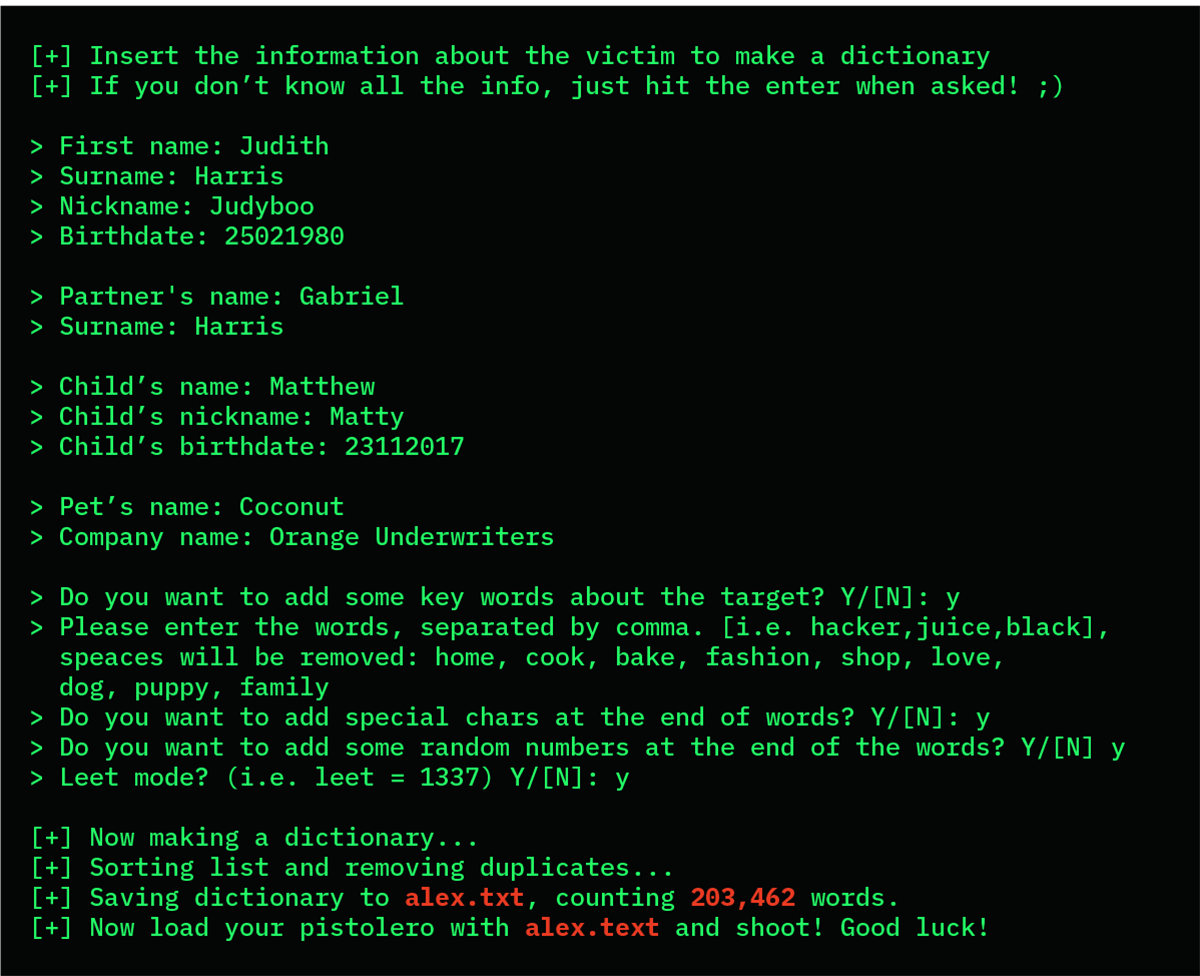
I chose to crack Judith’s password. It’s not the most effective way to hack an account. But it keeps my skills sharp.
The dark web: It’s easier to buy stolen account details from the dark web. People rarely use different passwords for different accounts. I take the details from one stolen account, and use them to access other accounts belonging to the same person. It’s child's play.
Public Wi-Fi: Public Wi-Fi is also a helpful friend. Shared networks, like the ones in coffee shops, can be used to intercept passwords.
Personally, I never use public Wi-Fi to do things I wouldn't want other people to see, like access accounts containing personal info, send emails, or make payments. You shouldn't either.
Fake emails, messages and phone calls: If I get stuck, or if I’m going after a cautious individual, I’ll reach out directly. My message will look similar to something they’d normally receive, like a delivery notification or a message from a colleague.
The message will contain a link to a fake website that looks genuine. The website will be set up to steal their password. These sophisticated attacks are great at tricking people into giving away their passphrases.
Right, I have Judith’s email address and 203,462 potential passwords. But Google will lock the account if the wrong password is entered too many times.
What about xyz-style.com? The website she got her “bargain” of a dress from. I wonder if it has the same security controls in place.
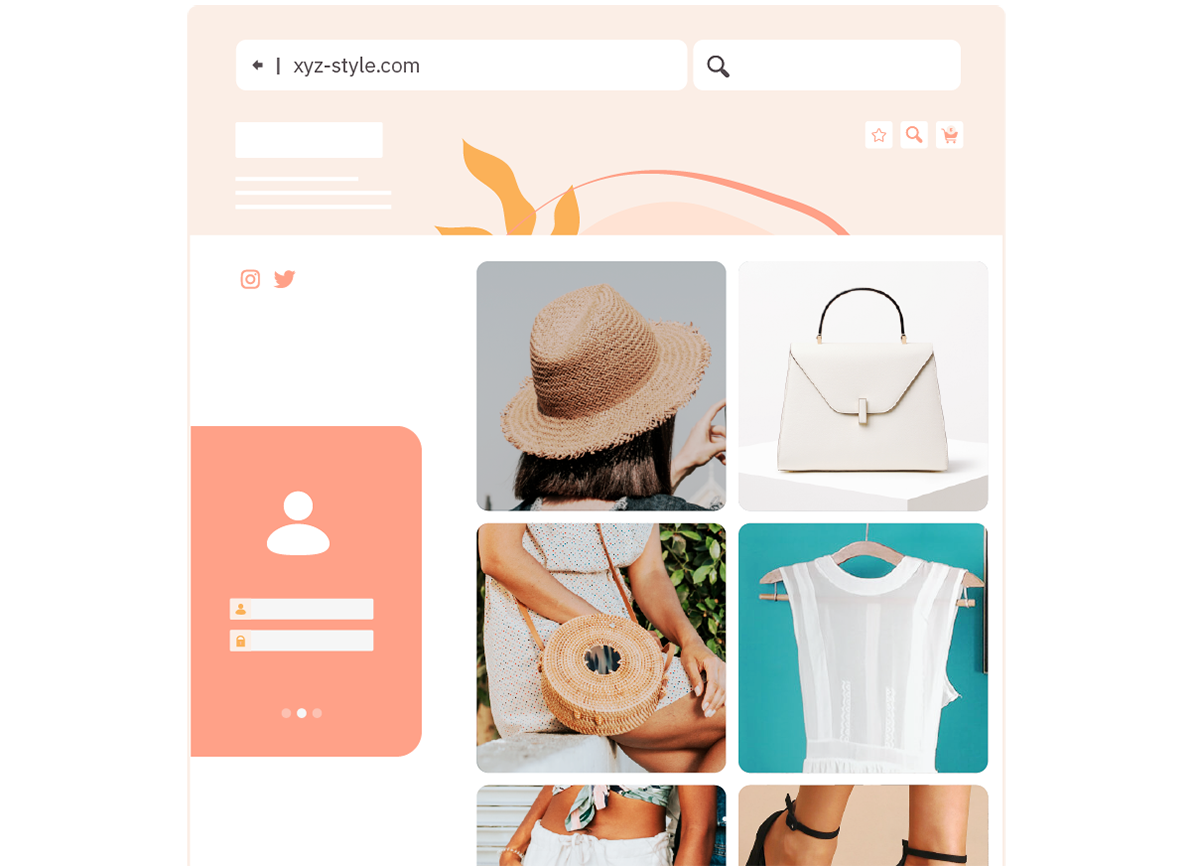
...bingo! I’m in.

People don’t realise they can check if passwords or account details have been leaked online.
haveibeenpwned.com is a website that lets you check if you have an account that has been compromised in a data breach.
It can be scary, but it’s worth doing. You can also sign up to an alerts system which will notify you if your details appear in future breaches.
Back to Judith.
I’m in to xyz-style.com. There’s not much to see. The site doesn’t store card details, unfortunately.
Doesn’t matter. The reason I hacked into xyz-style.com was to attribute a password to Judith. People frequently reuse passwords. Let’s try the same one to login into her email account…
In the past, you may have been advised to use a complex password. Something like this...
~2EnQ4#t?
It’s bad advice.
Complex passwords are very difficult for humans to remember. They’re also very easy for computers to guess, or “crack”.
Something like the above would take just 8 days for a computer to crack.
Using personal information in your passwords is also a bad idea.
So what should you do?
Passphrases are similar to passwords. They’re just stronger and easier to remember.An easy way to set a passphrase is to use three random words, or a simple but memorable saying, for example:
Join the words together to create your passphrase. You can include special characters, CAPITAL LETTERS and numbers if you want, but you don’t have to. If you do decide to, place them in simple, memorable positions, like at the end:
Your passphrase should be at least 12 characters long, but longer is better, if you can.
Pro tip
Passphrases are great, but using other methods of authentication is the goal. The Consumer Authentication Strength Maturity Model (CASMM) ranks each form of authentication by strength, from shared passwords (weak) to physical tokens (strong).
If you have the option of using a physical token or a built-in trust centre in lieu of a passphrase, then do.
But if you must use a passphrase, make sure it is strong and used in conjunction with MFA.
...It works!
I’ve hacked into Judith’s email. She’s made it so easy for me.
Many people do not realise how much they have invested in their email accounts until those accounts are in the hands of criminals.
In nearly all cases, the person in control of an email address can reset the password of any associated service or account.
By then it’s too late.
Stealing, cracking or buying passphrases is challenging. But it’s not impossible.
I’d suggest using extra measures to protect your accounts. That’s what I do.
MFA is a powerful tool to protect your main email and other high-value accounts. It takes an account from about 50% secure to 99% secure.
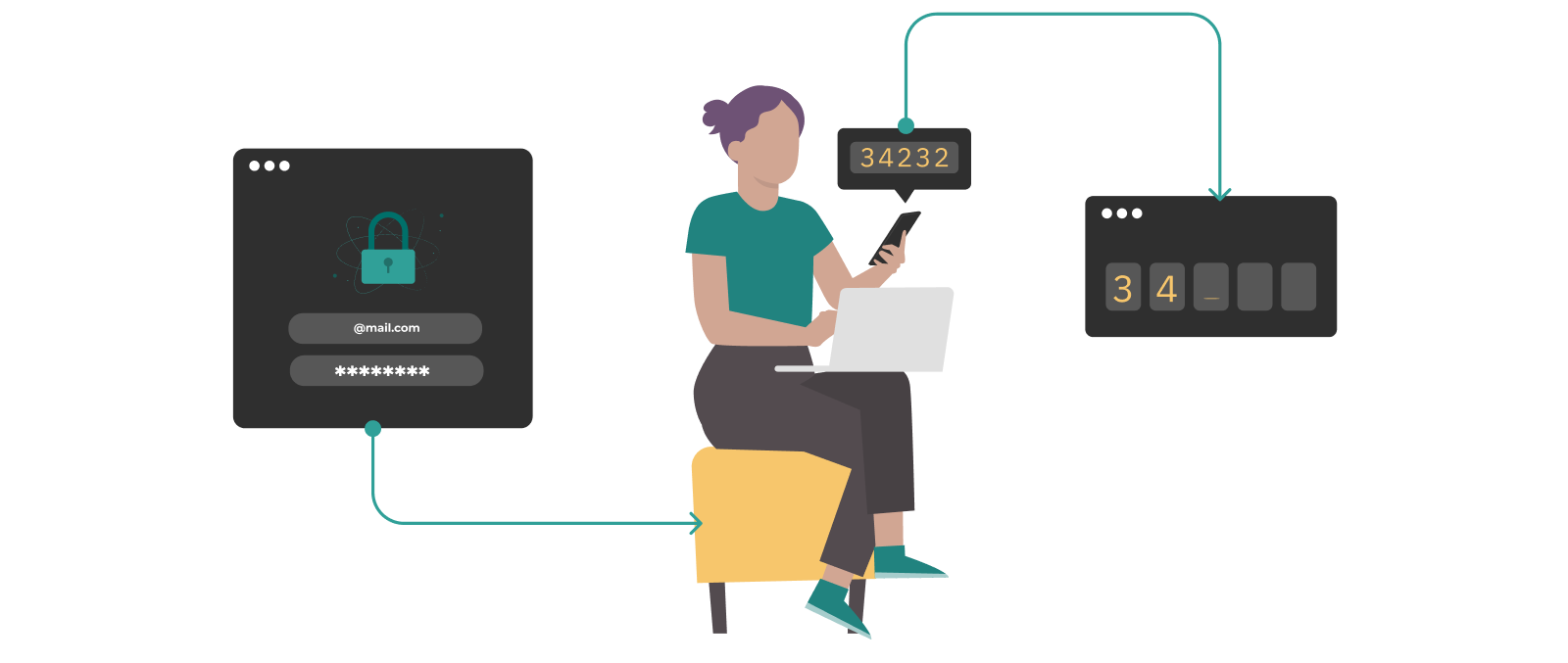
MFA lets you verify your identity twice when logging in, using your passphrase and a unique code from your phone.
This means if I have access to your passphrase, I cannot get into your account unless I also have access to your phone.
MFA is great, but it’s still vulnerable to brute force attacks. If someone can get hold of the ‘something you have’, they can likely guess the ‘something you know.’
Protect your accounts by always using MFA in conjunction with a strong passphrase.
Setting up MFAMFA is sometimes called two-factor authentication, or 2FA. Here are two ways to set up MFA for your email account.
Please note: App-based MFA is more secure than text-based MFA. But text-based MFA is more secure than no MFA!
Method 1: App-based MFA Use this method to verify your identity using a code obtained from an app on your phone:Method 2: Text-based MFA Use this method to verify your identity using a code sent to your phone by text:

Biometric readers are things like fingerprint scanners and facial recognition cameras. They remove the hassle of typing out passphrases manually.
Biometric readers are a real time saver. But they’re only as strong as the passphrase they represent. If you have access to, say, a fingerprint scanner, only use it in conjunction with a strong passphrase!
The four-digit pin you’ve “protected” your phone with? That’s not secure even with a biometric reader. You can do better!
A password manager stores all your passwords (or passphrases) in one place. They’re great if you have lots of different passwords to remember.
The passwords stored in the password manager are secured with one “primary passphrase”.
You can get them as standalone apps or you can use the one in your web browser. Both are fine.
If you don’t feel comfortable using a password manager, you can write passwords down. Store them somewhere safe, out of sight and, most importantly, away from your computer.
When it came to device security, John had it all figured out. Unfortunately, so did Leah.
It’s 7.30am. I’m on the bus. It’s cold and wet and I’m ready for a long shift at the day job.
Then I see him. Professional-looking, middle-aged guy on the way to work. He’s a little too engrossed in a newspaper. He plants his backpack on the seat next to him.
As the bus pulls into his stop, he tucks the newspaper under his arm and nods to the bus driver. Seems like a nice chap.
Then I notice it: he’s forgotten his bag.
I’m Leah. Bus rider, technology fanatic and cybercriminal. And today I earn my living.
I grab his bag and take a peek. His laptop is there. Jackpot.
But, if I’m going to earn my cash, I have to remember the first rule of being a cybercriminal: don’t get caught.
This means getting rid of the evidence (i.e. the laptop) as soon as possible.
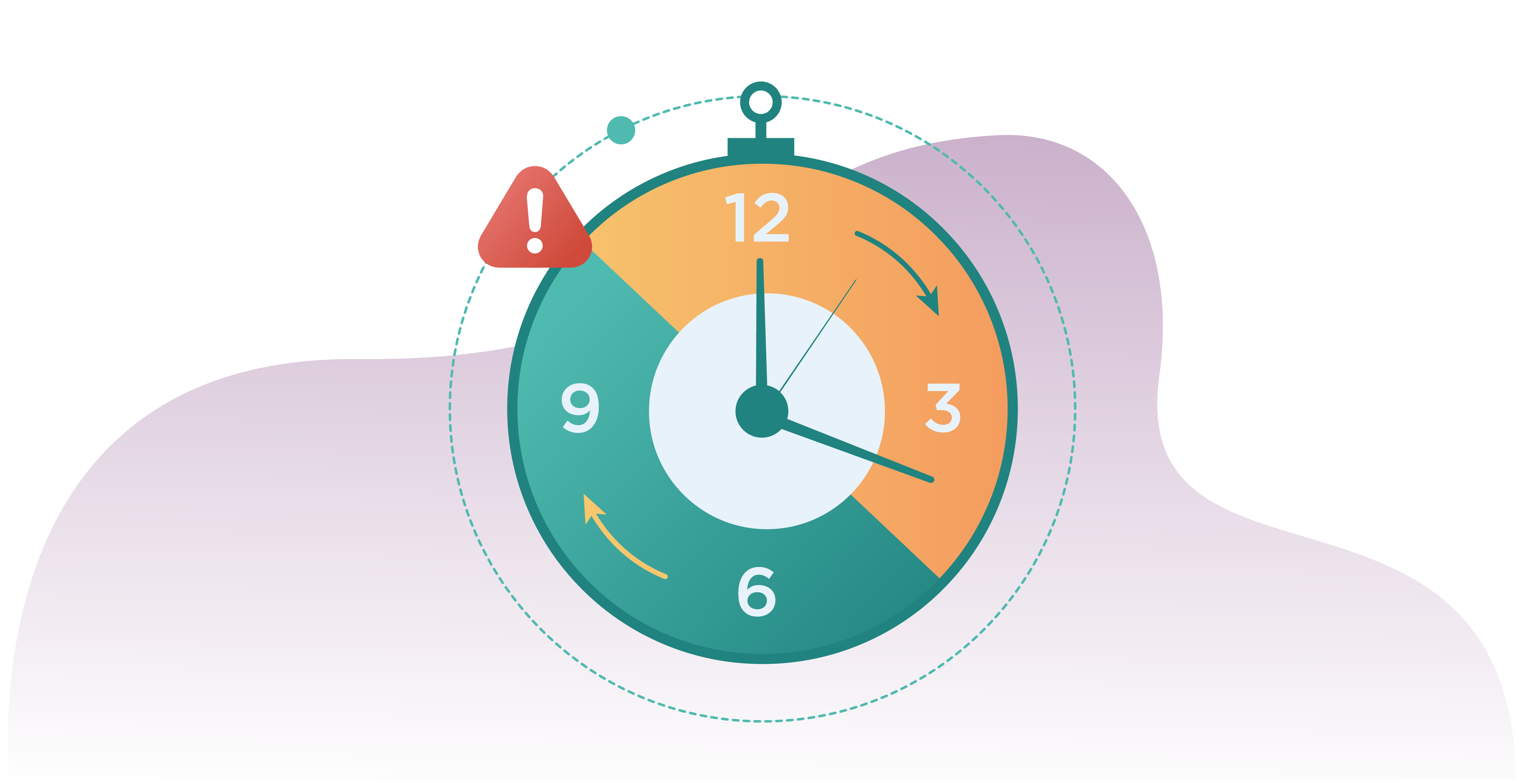
I have 20 minutes till the bus loops back around and I can return the laptop. 20 minutes to grab everything I need and install some nasty ransomware.
Plenty of time.
Pro tip
Ransomware is a kind of malicious software. It blocks access to information, data, and computer systems until a sum of money is paid. However, there is no guarantee that access will be granted, even after the ransom’s been paid.

I’ve already spotted his first mistake: being in the wrong place at the wrong time. And I’m not talking about him. I’m talking about his diary. It's right next to his laptop. A treasure trove of pet names, important dates and personal information. His name is John.
Using a password profiler, it takes 8 minutes to figure out John's most important passwords.
With John’s password cracked, his laptop is mine.
Then I hit the first snag. John’s installed multi-factor authentication (MFA). Well played.
Leah 1 - 1 John
John is clearly well up-to-date with his organization’s security policies. As with any high-performing professional, he has MFA linked to his phone. That’s the ‘good’.
As I go to log in, John’s laptop sends its access request to his phone. I hear a melodic ping come from John’s bag. Yep, it’s his work phone. You may think that this is a win, but I’m not hopeful.
If John’s set up facial recognition or a fingerprint scanner on his phone, it’s protected. Even I can’t get past a biometric lock
I look at his phone. John's turned off notifications. This means no lock-screen pop-up messages to give away the code. Clever. Thankfully, the phone only requires a four-digit pin. That’s the ‘bad’.
I try a few different combos.
‘0000’.
Nope.
‘1234’.
Nope.
‘4321’.
PIN accepted.
That’s the ‘useless’.
Pro tip
MFA is incredible. It will take your accounts from 50% secure to 99% secure. BUT ONLY if used in conjunction with biometric identification or a strong passphrase while notifications are off. Without them, MFA is still vulnerable to brute force attacks.
Learn how to set up MFA here.
The bus swerves round a sharp corner and someone bumps into me. I worry they'll notice that I’m up to no good, but they don’t.
I log into John’s computer and see that he has the most important defences primed: an antivirus and a firewall.
Antivirus software provides great (though not complete) protection against malware. John’s evidently more cyber-savvy than I give him credit for. I’m almost proud.
Pro tip
Take a moment to check if you have antivirus protection installed on your device (some work devices may have it pre-installed). But make sure to install only one. Different antivirus programmes can conflict.
If your device has no antivirus protection, installation only takes a moment. You could install one while you’re reading this module.
Once installed, set it to auto-update.
And if you don’t want to pay for one, there are plenty of free options.
Case study: The computer virus from Outer Space
A firewall is just as important. Luckily for John, his is turned on. It decides what his computer lets in and what his computer keeps out. Like his own private virtual bouncer.
Pro tip
Hey, remember the last pro tip? Yep. Do the same for your firewall. Go on! Check if it’s turned on. I’ll wait.
Unfortunately for John, his software hasn’t been updated.
You can tell a lot from someone’s device. Not just their account details and favorite font, but what they’re like as a person.
John dislikes cold weather and vegetables (judging by his most recent takeaway order). He also dislikes updates. I know this because I’m bombarded by update notifications as soon as I open up his system settings. This means there are holes in his devices’ security.
I look at the software version John has installed. Like an open book, I can see every exploit. Every flaw. Total transparency. A cyber criminal’s dream.
Case study: NotPetya
To think, my plans could have been scuppered if John had just set his security software to auto-update. Everything would be downloaded and installed automatically. What a shame.
John’s favorite font is Helvetica, by the way.
Ransomware could make me some good money, but only if there’s anything worth ransoming. As the bus begins its journey back toward John’s stop, I treat myself to a look at his work files.
Access denied.
John has encrypted his files. Perhaps I’ll need to extend my journey.
Encryption sounds complex, but it’s actually just a type of lock. It scrambles information when active, and unscrambles it when unlocked. John’s locked his files behind a password. It’s a simple spell, but quite unbreakable.
Thankfully, John keeps all of his passwords in the notes app on his phone. Easy peasy. I now have access to his files. No extra journey required.
Leah 4 - 3 John
You’d think it would be easy to install the ransomware after accessing John’s files, but I have to be wary of permissions.
You see, users need permissions to make changes to an account. Permissions decide what can enter and what can alter computer files. If John has set up his devices properly, his user account won’t have permission to install software.
As this was John’s work laptop, he had already been granted all the permissions he needed. And since I was already in his account, I had all the permissions I needed.
Thanks John!
Home Tip
The best way to securely set up your personal devices is to separate User and Admin accounts (using unique passphrases for each). You should use the User account for day-to-day activities, then switch to the Admin account when installing software.
To be even more secure, set up 2 Admin accounts (with different passphrases). That way, you always have a backup if anything happens to the other accounts.
After installing the ransomware, I use John's phone to contact his boss.
I tell him that John left his bag on the bus. ‘Oh thank you so much, you’ve saved the day!’
Don’t I know it.
It’s time to finish up and play the hero.
But there’s one thing left that can stop my ransomware attack from working: a backup.
Backups are extra copies of data. They can be copies of a file, a picture, or a video. Anything really. They can be stored anywhere, but are only useful when separate from the original device. USB sticks, external hard-drives, and even ‘cloud’ services are all great places to backup important data.
As the bus hurtles towards John, I pray his data isn’t backed up. If it is, I’ll have nothing to ransom.
I check cloud services: none. I check his bag for USB sticks: none. Then I find it: an external hard drive.
Pro tip
Cloud storage is great. It’s affordable, and most providers encrypt all information stored on their servers. However, each provider is different. It’s worth researching cloud service providers as Clouds outside of your locale may follow different data protection laws.
Though external hard-drives can be secure, John left the hard-drive in his bag. This means his data was mine to destroy. I plug it in and delete the lot.
Problem solved.
Pro tip
External hard-drives are a great place to backup your data. But there are a few things you should always do.
The bus skids into the last stop. The doors slide open. I pop everything back into John’s bag as if they never moved. I walk 3 minutes to John’s work. It’s a huge financial company.
Perfect.
John’s waiting outside. He shakes my hand and thanks me profusely. What would he do without me? How could he ever repay me?
I tell him it was nothing and wave goodbye. John has his laptop back, and he’s already going about his day as if nothing is wrong.
I jump back onto the bus.
Time to launch the ransomware attack.
3….
2…
1…

It was Phoebe’s favourite place to work. Unfortunately, the same could be said for her attacker.
Phoebe loved hybrid working. Two days in the city for big meetings, three days at home for deep work—or sometimes, at her favourite café. Wi-Fi, a fresh croissant, and a perfect cappuccino. Her “third space” for focused work.
She settled into a window seat, connected to “BrewCrew_FreeWiFi,” and jumped into her team chat.
Twenty minutes later, her Slack disconnected. Then her inbox started behaving oddly. An email about “updated payroll details” vanished as quickly as it had arrived. Phoebe shrugged it off as a Wi-Fi hiccup.
But elsewhere in the café, someone was pulling the strings.
Unbeknownst to Phoebe, an attacker had set up a rogue Wi-Fi hotspot—an evil twin of the café’s real network—and Phoebe’s device had automatically joined. Now, every password and file sent over that connection passed right through the attacker.
Later that morning, Phoebe’s manager called.
“Did you just request changes to your payroll account? We got a form from your email address…”
Phoebe’s heart sank. She hadn’t sent anything. Someone had captured her credentials and was already trying to use them.
Pro tip
Working on the go? Think before you connect.
Public Wi-Fi is always risky for sensitive work. They can be used to monitor web use and intercept personal information. You can protect yourself by tethering or using a VPN.
Tethering is sharing a device’s (usually a phone’s) internet connection with another device.
VPNs create a secure connection to the Wi-Fi hotspot and can be downloaded as an app.

Remote and hybrid work have opened up fantastic new opportunities. But with new opportunities come new security dangers.
Attackers know we’re often outside the office, and will take advantage, just as someone exploited the café Wi-Fi right under Phoebe’s nose.

Pro tip
Protect your networks!
Change all default router passwords, turn on WPA3 security if available, and use a guest network for visitors. Find out how to secure your guest network here.
If the café had followed these steps, Phoebe’s attacker couldn’t have cloned their network so easily.

Phoebe believed the Wi-Fi network was safe. The attacker counted on her trust and routine.
Thankfully, her manager was sceptical and knew how to spot a fake email.
Pro tip
If you receive a message that
it could be a fake.
Verify the message with the sender using alternative contact details.
If the message is suspicious, report it to your IT department straight away.

What’s more, Phoebe was using her work laptop, which had pre-installed protections.
Most work devices come loaded with security tools, including antivirus software, firewalls, and VPNs.
If she had browsed work files from her own tablet or phone, the risks would have doubled.
Pro tip
When on a work device, use only company-approved apps and avoid forwarding work files to personal accounts.
If you are on a personal device, enable your firewall, install antivirus software, and set the device to auto-update. Apply biometric locks where possible, and only download apps from official app stores.
But Phoebe was not one to rest on her laurels.
As soon as she realised her work account was compromised, she changed her passwords to strong, separate passphrases. She then used a password manager to store these passphrases and enable passkeys for her crucial accounts.
The attacker captured Phoebe’s password on the compromised Wi-Fi. But because she quickly reset it and enabled passkeys, they couldn’t get further.
Pro tip
Want to set up passkeys but not sure where to start? Click here.
Though public Wi-Fi was the source of Phoebe’s woes, cybercriminals have more tricks up their sleeve.
To make sure you are safe when out and about, practice these great security habits:

Keep work-related conversations to the office. Avoid talking about confidential projects in public, even on calls.
Shred documents you are no longer using. Securely dispose of notes, printouts, and any work-related documentation you no longer need.

Speak up. If something goes wrong, you make a mistake, or notice something suspicious, report it. This could be anything from clicking a suspicious link to losing a device. Quick reporting means quick containment.
Like Phoebe, your workspace can change daily. That’s why your vigilance must be constant.
Every action you take, from Wi-Fi choice to quick reporting, helps keep you and your team safe, wherever you work.
Andre thought his accounts were safe. But it wasn’t his accounts that were the problem.
Andre Taylor had just landed his dream job at a creative agency. Career progression, challenging work, a company car—everything seemed to be falling into place.
Then, one Monday morning, his phone buzzed:
Suspicious transaction detected. Please call immediately.
His heart raced as he scanned the message.
Withdrawals from an online casino site? An unpaid credit card in his name? None of it made sense.
And it was about to get much worse.
By lunch, Andre had learned the awful truth.
Weeks earlier, his details had been stolen when one of his favourite online retailers suffered a data breach.
Sure, Andre used strong, separate passphrases for his accounts, but criminals had access to his full name, address and date of birth. And sometimes, that is enough.
Now, someone was living a financial double life as “Andre Taylor.”
Just like that, Andre’s plans—a new apartment, a car loan, even holiday flights—were in jeopardy. Andre’s criminal double had racked up thousands of pounds worth of bills in his name.
The fear and frustration followed him everywhere.
Pro tip
Passphrases are good, but passkeys are better.
Enable passkeys on all accounts that allow it, including Google, Apple and Microsoft accounts, shopping and banking apps, and work accounts that utilise Single Sign-on (SSO).
If you see “Sign in with a passkey,” use it!
You can find out how to set them up here.
You might think: this would never happen to me. But today, even small bits of information are enough to build a fake identity.
After the breach, criminals knew Andre’s name, address, and date of birth, which allowed them to narrow down his social media accounts.
And what would you know? His social media accounts were public.
It was all there. His first cat, his mother’s maiden name, and the street he grew up on. And while Andre’s passphrases were strong, the answers to his security questions were not.
Pro tip
Personal information available online is known as a ‘digital footprint’. This includes any information on social media accounts, search engines, and networking sites. This information can be used to answer security questions.
Use Google’s ‘Results about you’ tool to see what personal information is publicly available online. And if you want to make your social media accounts private, click here to find out how.
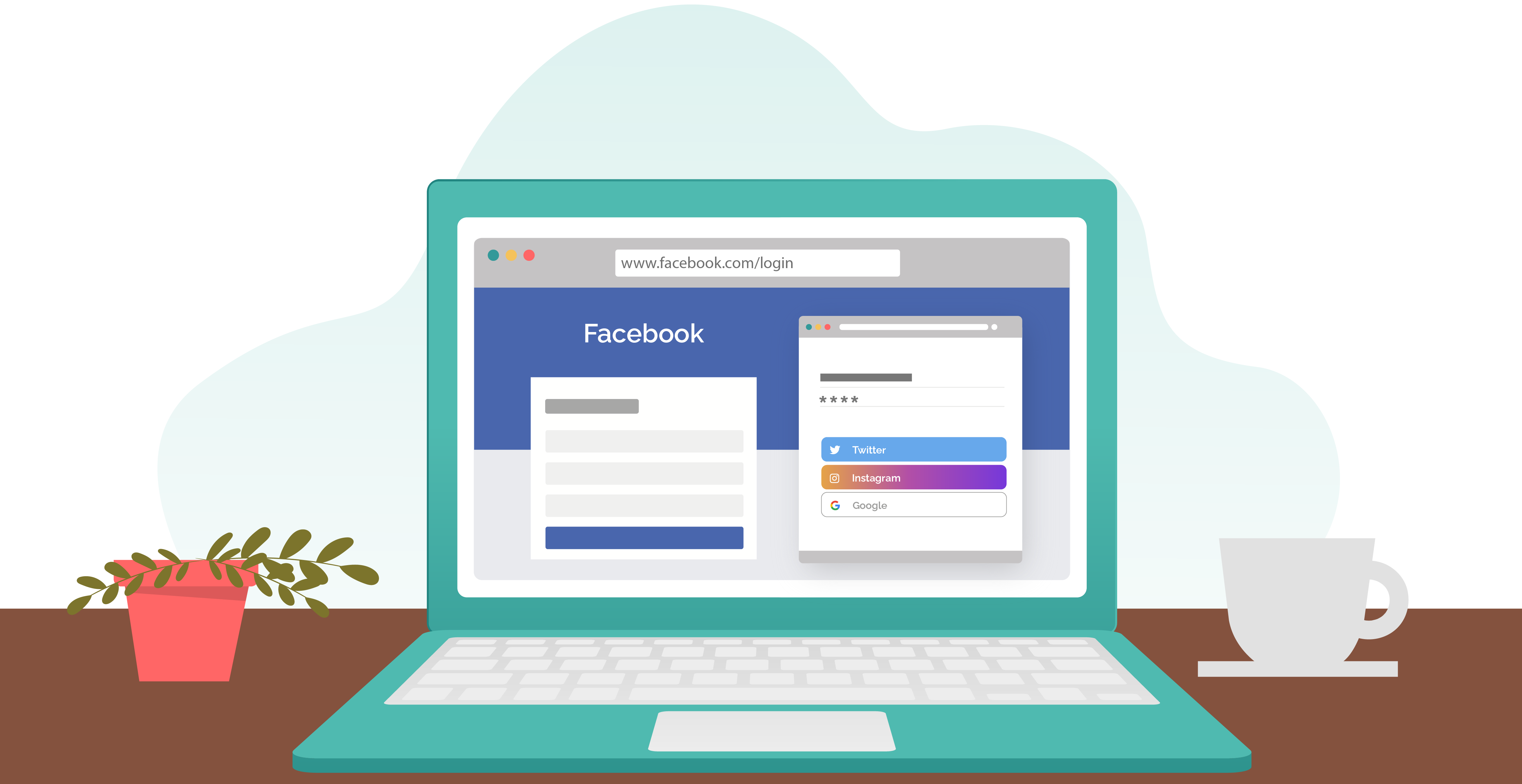
With all the information they had available, criminals were able to open accounts, take out loans, and even lock Andre out of his phone.
Pro tip
“SIM swapping” occurs when a cybercriminal transfers a mobile phone account and number to their SIM card. To do this, they phone a service provider pretending to be their victim. They then convince the provider to transfer the account to their SIM card.
If the victim uses SMS messages as a form of MFA, it can be bypassed.
Protect against SIM swapping by locking your SIM and setting a password with your phone service provider.

Cybercriminals are more than one-trick ponies. They have plenty of tricks up their sleeves.
If they cannot access your accounts with information available online, they can try and get it out of you themselves.
To do this, fraudsters can call, email, or text, posing as companies, colleagues, or even loved ones.
Their goal: trick you into revealing confidential information or clicking malicious links that install malware.

Phishing emails are designed to make you click. To do this, they will create an undue sense of urgency, pique your interest, or cause you to panic. If the email causes any emotional reaction, it could be phishing.
They may also contain spelling errors, poor grammar, or low-resolution images.
Remember: If something seems off, it probably is.
Pro tip
If you receive an unexpected email, verify its authenticity by contacting the sender using an alternative contact method.
If you suspect a phishing email, report it to your IT department or Security team.
It wasn’t Andre’s fault his data was leaked. But he could have taken some precautions to prevent his identity being stolen.
Audit your digital footprint. Sites like Spokeo, Whitepages, and BeenVerified aggregate data for marketing. But criminals can exploit these too. If your information is publicly available, you can request your details be removed.

Deactivate old accounts. Even dormant accounts can be breached.
Lock your phone number down. Add a PIN or passphrase to your mobile account. Ask your provider for extra authentication measures.
Control your physical mail. Install a lockable mailbox and redirect mail when moving. Shred documents containing personal information before recycling.

Monitor your identity. Sign up for free credit monitoring and register to vote at your real address, but opt out of the public register.
If you spot suspicious activity:
Identity theft can happen to anyone. Even the most careful among us. But with up-to-date habits and a few proactive steps, you can take control.
Don’t let Andre’s story become yours—start protecting your identity today.
1. Are you really a target?
2. Spotting fake emails
3. Security incidents
4. Sophisticated attacks
5. Unique passphrases
6. Protecting your devices
7. Working remotely
8. Preventing identity theft
.avif)